On a Computer:
- Go to classroom.google.com.
- Click the class
Classwork
- To attach a photo:
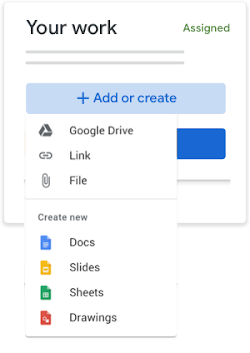
- Under Your work, click Add or create
or File
.
- Select the photo or file and click Add.
Note: You can't attach a file you don't own.
Note: You can attach or create more than one file.
- Under Your work, click Add or create
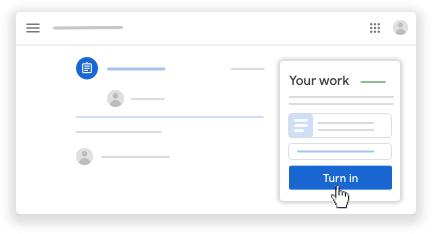
- Click Turn In and confirm.The status of the assignment changes to Turned in.
On a Phone:
- Tap Classroom
.
- Tap the class
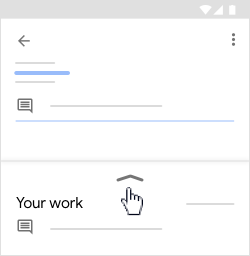
- On the Your work card, tap Expand
.
- To attach an item:
- Tap Add attachment.
- Tap Drive
, File
, Pick photo
, or Use camera
.
- Select the photo or use the camera to take a photo.
- Tap Turn In and confirm.
The assignment status changes to Turned in.


No comments:
Post a Comment